

Personal details
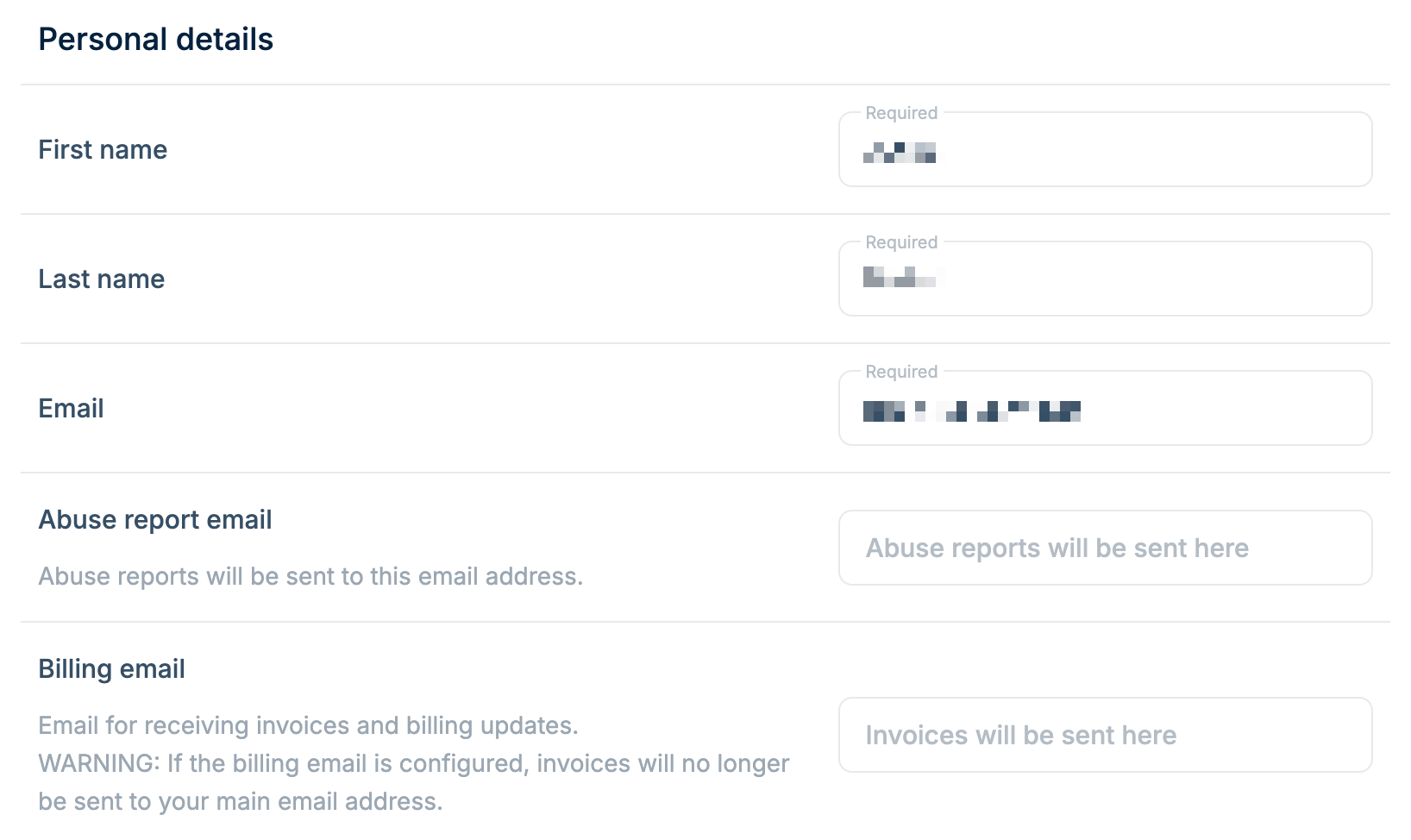
Update your basic account information:- First name (required)
- Last name (required)
- Email (required) - Your primary login email
- Abuse report email - Separate email for receiving abuse reports
- Billing email - Separate email for invoices and billing updates
If you configure a billing email, invoices and receipts are sent only to that
address and no longer to your main email. The change applies to every billing
email sent after you save it.
Billing address
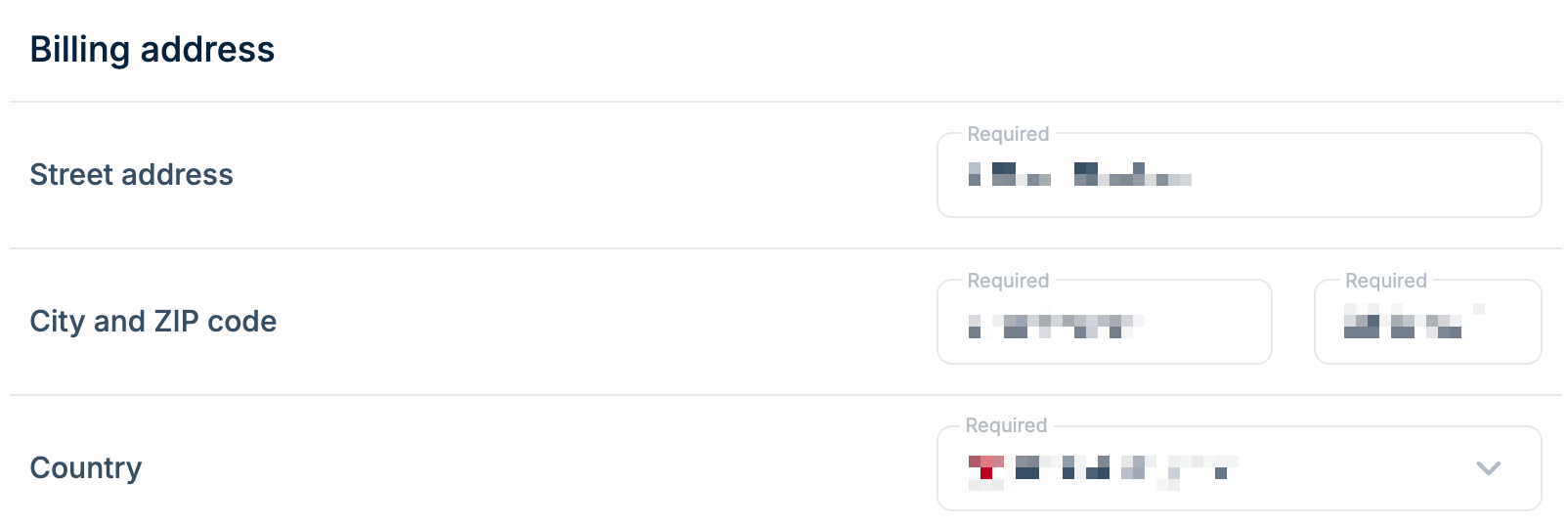
Your billing address appears on invoices and determines your tax rate. All fields are required:- Street address
- City
- ZIP code
- Country
Company
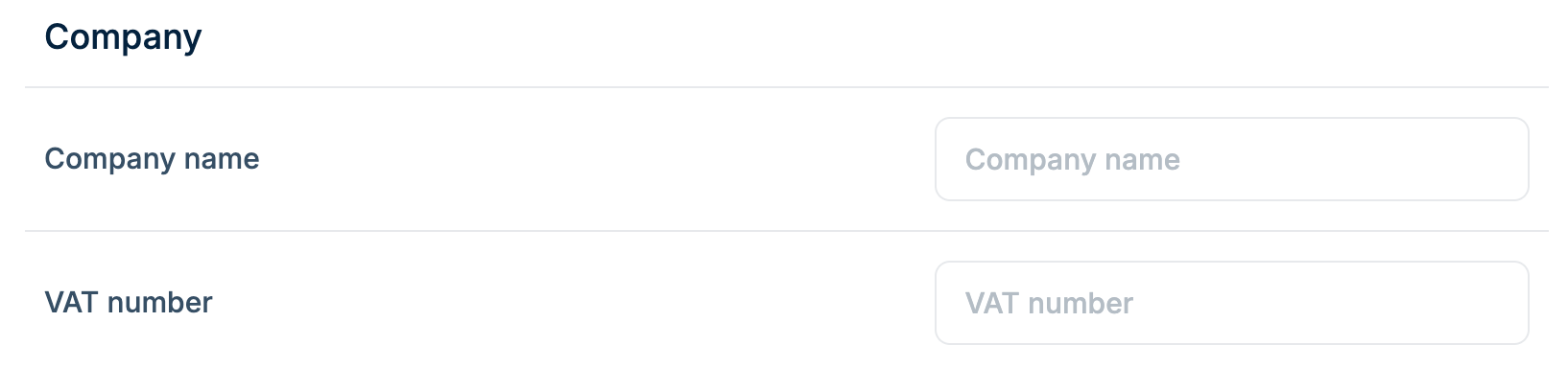
Optional fields for business accounts:- Company name - Appears on invoices. Required if you enter a VAT number.
- VAT number - For VAT-registered businesses. EU VAT numbers are validated against the EU VIES register for the country in your billing address, and a valid number applies the reverse charge. The field is only shown for countries where we collect tax.
Team members can only edit billing details if they have billing permissions.
See Team Permissions.
When changes take effect
Saving new billing details updates your account immediately, but the documents we issue pick them up at different times.Monthly usage invoices
Usage is billed continuously during the month. At the start of each monthly cycle we load your billing details and fix them for that cycle, and all usage recorded during the month is billed against them. The invoice issued on the 1st of the following month covers the previous month’s usage and shows the details that were in place when that month began. Because the current cycle has already fixed its details, a change you make mid-month applies from the following cycle. The first monthly invoice that shows your new details is the one issued on the 1st of the month after next. For example, you update your billing address on 15 July:Invoices that have already been issued are not changed when you update your
details. If an issued invoice needs a correction, open a support ticket in the
dashboard or email support@bunny.net.